Installation Requirements:
- Before installing Softaculous make sure that ionCube Loaders are enabled.
- In order to install Softaculous on a VPS or a dedicated server with cPanel, you will need to perform the steps listed below:
- Log into your WHM (as a root user).
- Go to Server Configuration (1), click Tweak Settings (2) and navigate to the PHP tab (3). Select ioncube (4) for cPanel PHP Loader:
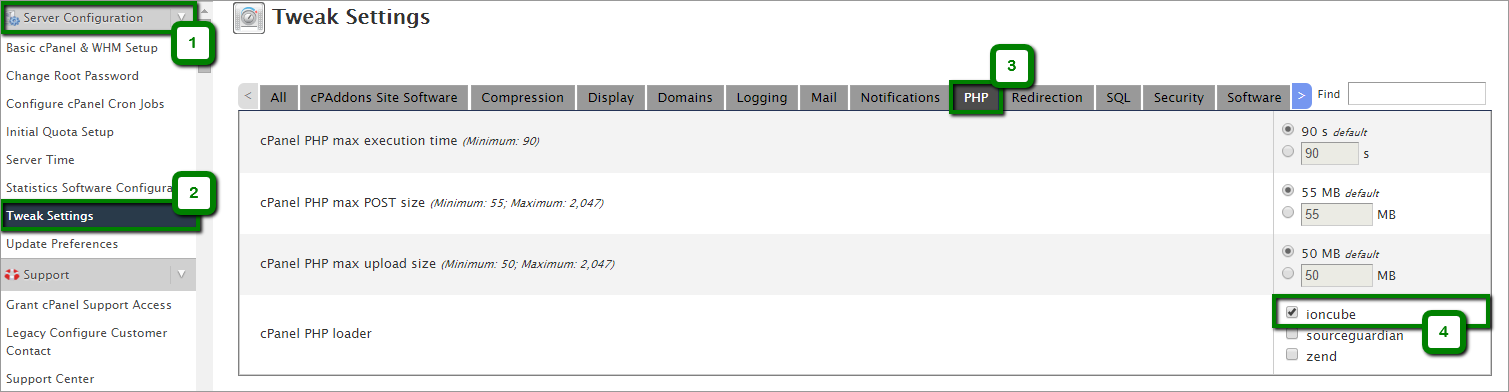
- Click on the Save button below.
NOTE: This will enable Ioncube for you in the third-party PHP binary. - If you have a firewall, access to download packages from *.softaculous.com should be allowed. The following domains should be whitelisted in your firewall as these are the mirrors used to download the script packages:
api.softaculous.com (IP : 216.18.221.243)
s1.softaculous.com (IP : 192.210.128.227)
s2.softaculous.com (IP : 76.164.222.115)
s3.softaculous.com (IP : 76.164.201.252)
s4.softaculous.com (IP : 148.251.68.26)
Installing Softaculous
- Log into your server via SSH and run the following commands one by one:
wget -N https://files.softaculous.com/install.sh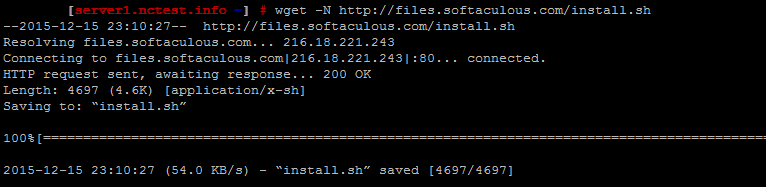
- Once the installation file is downloaded, proceed with the following commands:
chmod 755 install.sh
./install.sh - Wait until the Softaculous installation is completed. The following congratulation message should appear in your command line:
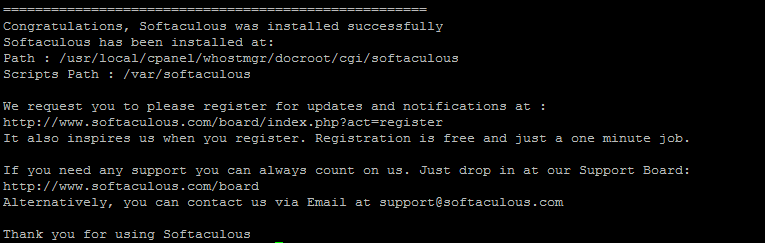
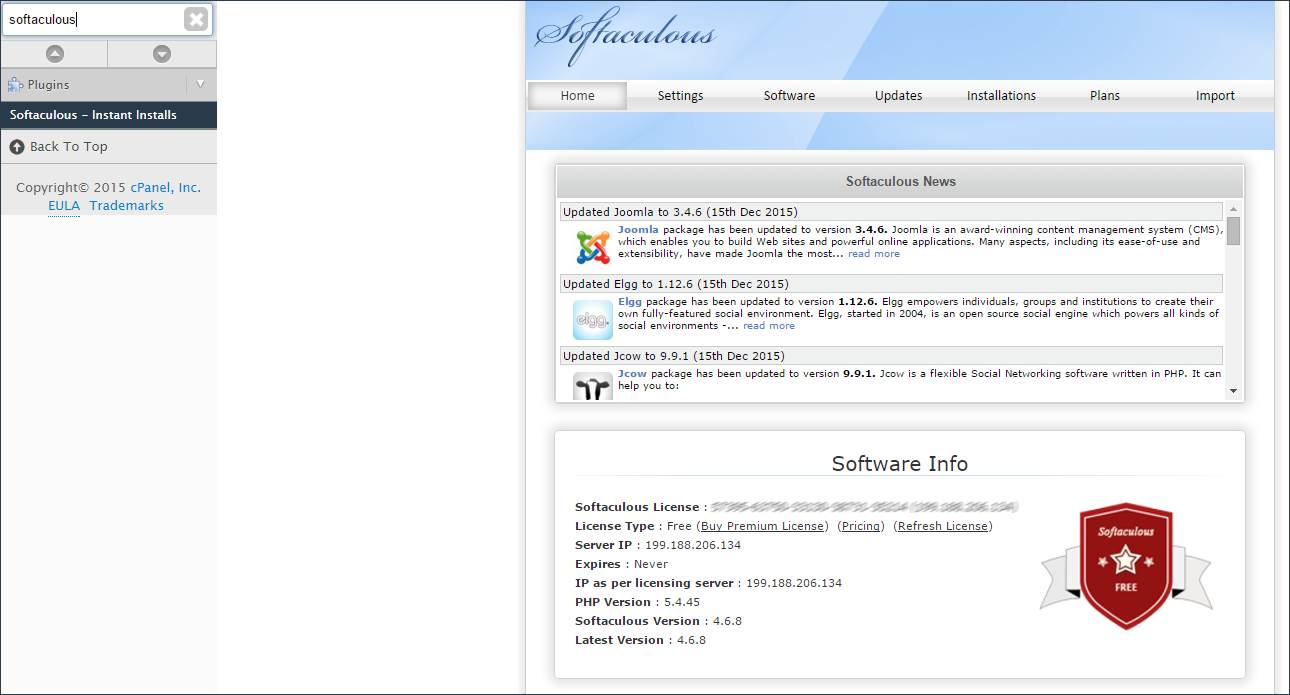
- Now go back to your WHM, navigate to the Plugins menu and click on the Softaculous - Instant Installs menu:
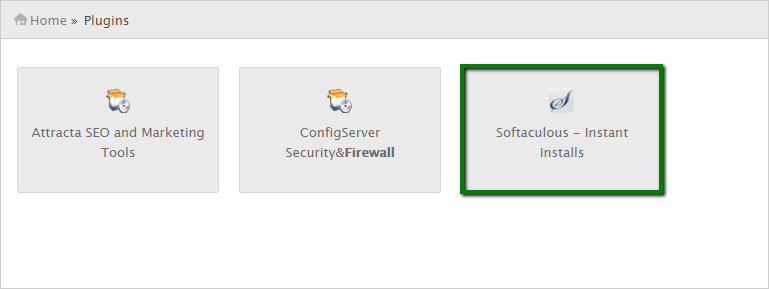
- The following page will open if the installation is successful:
suPHP Settings
- If suPHP is enabled on your server, the following adjustments should be applied so that Softaculous sets the correct permissions for writable files and folders:
1. Navigate to the Settings menu in Softaculous: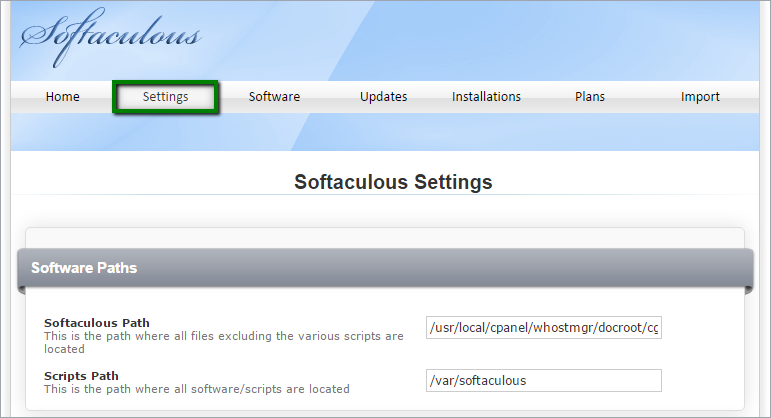
2. Edit CHMOD Files to 0644 and CHMOD Directories to 0755.
The installation of Softaculous on the suPHP server is completed.
That's it!